
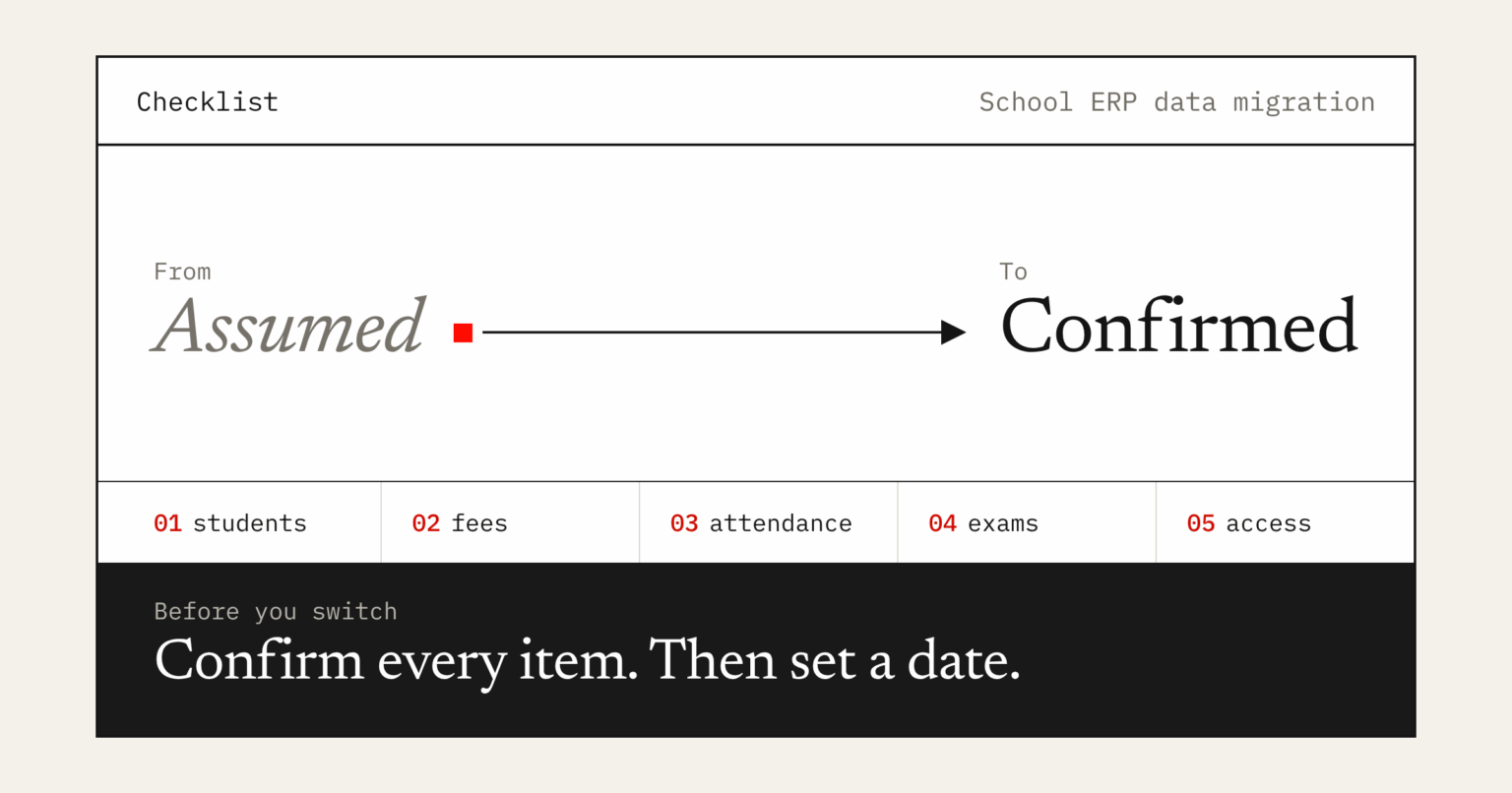
Most worries about changing school or college ERP software come down to one question: will our data arrive safely? The honest answer is that it depends on what is checked before the move, not on what is promised during it.
This checklist covers what to confirm before a school ERP data migration begins. It is written for principals, administrators and office managers, and it can be completed without technical training.
The School ERP Data Migration Checklist
| # | What to confirm | Why it matters |
|---|---|---|
| 1 | Current student records | Admission numbers, class, section and contact details are the base every other record hangs on. Duplicates should be found now. |
| 2 | Past students | Decide how many years move to the new system and how many are kept as an archive. |
| 3 | Admissions in progress | Enquiries and applications that are half-way through must not be lost in the gap between systems. |
| 4 | Fee structure and fee heads | Class-wise fees, concessions, scholarships and instalments have to be set up before any balance can be correct. |
| 5 | Payment history and outstanding balances | Opening balances on the new system must match closing balances on the old one on the day of the switch. |
| 6 | Attendance records | At least the current academic year, in a form that still supports the reports you need. |
| 7 | Examination marks and results | Marks, grading schemes and report card formats differ widely between systems and usually need mapping. |
| 8 | Staff records and user roles | Who can see and change what. Permissions rarely transfer automatically. |
| 9 | Classes, subjects and timetables | The academic structure the rest of the data depends on. |
| 10 | Documents and templates | Uploaded documents, certificates, receipts and report card layouts. |
| 11 | Integrations | Payment gateway, messaging service, attendance devices and accounting tools each need their own plan. |
| 12 | Backups and export authorization | A full backup before anything moves, and written authorization from the institution for every export. |
How to Use the Checklist
Go through it with the person who knows the current system best, usually the office manager or system administrator. Mark each item confirmed, unclear or not available. Every “unclear” is a question to settle before a go-live date is discussed.
Sort the Data: Migrate, Archive or Leave
Not everything needs to move. Sorting records into three groups keeps the school ERP data transfer manageable:
- Migrate. Records the institution works with every day, such as current students, fee balances and this year’s attendance.
- Archive. Records you must be able to refer to but will not edit, such as older results and closed financial years.
- Leave. Test entries, duplicates and data nobody can explain. A migration is a good moment to stop carrying them.
How to Check the Migrated Data
Testing should be done by the people who know the records, not only by the people who moved them. Simple checks catch most problems:
- Student counts per class and section match on both systems.
- Total fees outstanding match, class by class.
- A sample of individual students is compared field by field by office staff.
- The reports you use most are produced on both systems and compared.
- Each staff role logs in and confirms what it can and cannot see.
What a Checklist Cannot Do
It does not remove risk, and it cannot guarantee that every feature of the old system has an equivalent in the new one. What it does is make gaps visible while there is time to plan around them. For the wider process, see our guide to school and college ERP software migration and the general application migration checklist.
Student records are personal data, much of it about minors. Our Data Protection and Confidentiality Commitment sets out how we approach client data.
Frequently Asked Questions
Who should complete the checklist?
Whoever knows the current system best, together with someone from the management who can decide what is archived and what moves.
What if our current system cannot export some of this data?
Then that item is planned separately. Options depend on the system, and may include a different export route, manual entry of a limited set of records or keeping the old data as a reference archive.
Do we need to clean our data before migrating?
Some cleaning is nearly always needed, typically duplicates, missing fields and inconsistent fee heads. It can be done before or during the migration, and the plan should say which.
How long does a school ERP data migration take?
It depends on the volume and quality of the data and on what your current system can export. A timeline is only meaningful after the assessment.
What to Remember
- Data arrives safely because of what is checked beforehand.
- Twelve items should be confirmed before a go-live date is set.
- Sort records into migrate, archive and leave.
- Office staff should check the migrated data themselves.
- A checklist makes risk visible. It does not remove it.
How Y5MEDIA Handles Migration Data
Every migration we plan starts with an assessment of what exists and what can be exported. ERP Software Migration Services sets out the offer, and Backup Solutions covers item twelve on the list.
ERP Software Migration
Free data migration within agreed scope, a monthly subscription and customization quoted by requirement.
Learn more →School and College ERP Migration
Why migration feels risky, and the five-step process that makes it manageable.
Learn more →Backup Solutions
Automated, tested backups before and after any change to your systems.
Learn more →Not Sure What Your Current ERP Can Export?
Send us the checklist with whatever you can confirm today. We will help you close the gaps and tell you what a migration of your data would realistically involve.
Free data migration, subject to compatibility and agreed scope. Affordable customization. Predictable monthly subscription options.
Call or WhatsApp +91 7902024242, email support@y5media.com, or use the contact page.