
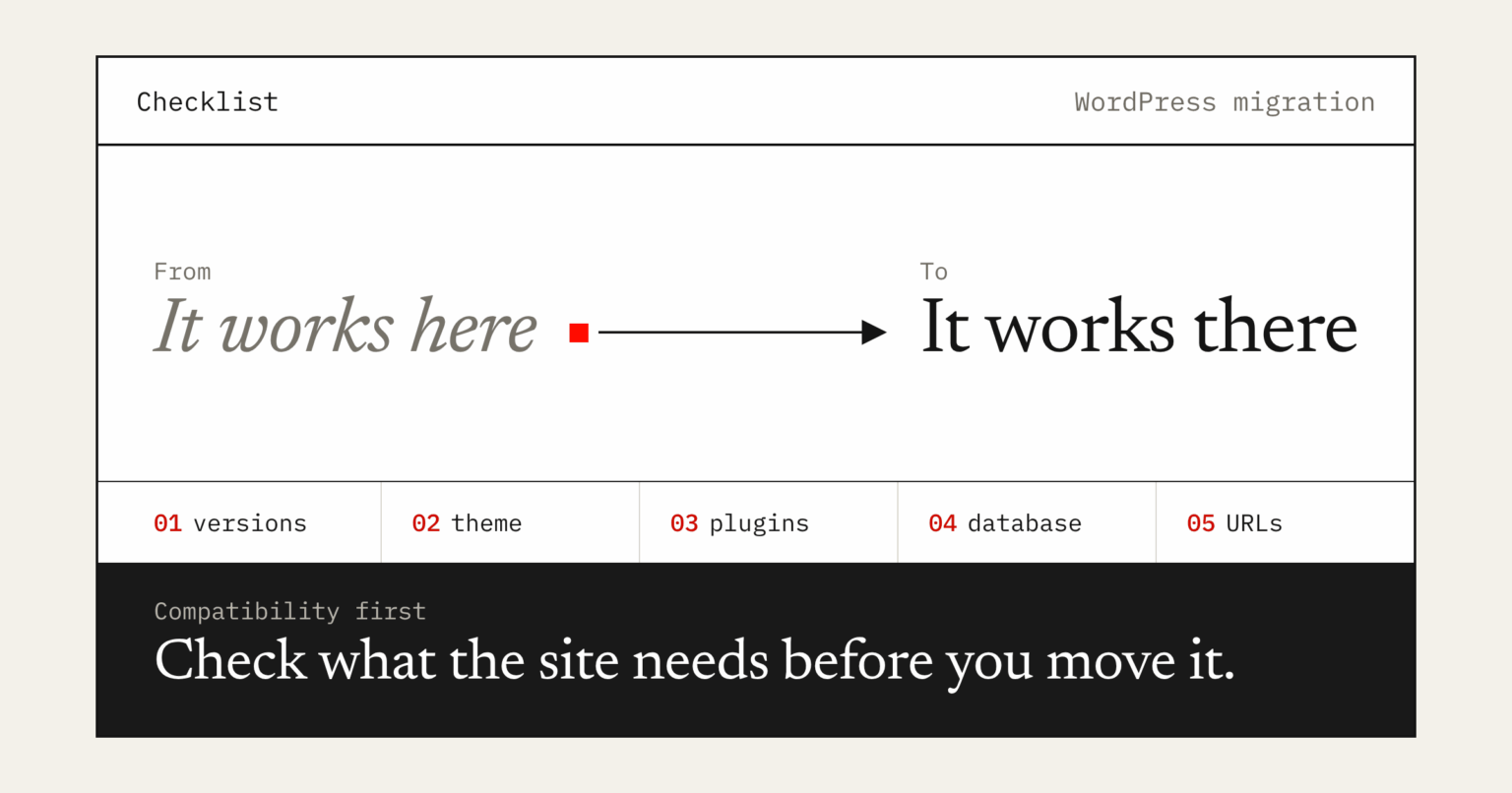
WordPress is easy to move and easy to break while moving. The files copy without complaint, the database imports, the home page loads, and then someone opens an inner page and the layout has collapsed, or a form no longer sends, or half the images point to an address that no longer exists.
This WordPress migration checklist covers what to check before the move and what to verify after it. It complements our general hosting checklist with the points that are specific to WordPress.
Before the Move: Check Compatibility
A WordPress site depends on a stack of versions that must agree with each other. Moving to a new server often changes one of them without anyone intending it.
| Check | Why it matters |
|---|---|
| PHP version | A newer or older version on the new server can stop older themes or plugins from working. |
| WordPress version | Know which version the site runs, and whether it will be updated as part of the move or afterwards. |
| Theme and child theme | Custom changes usually live in the child theme. Both must move together. |
| Page builder | Sites built with a page builder such as Elementor need a matching builder version, or layouts can break. |
| Plugins and licences | Paid plugins are often licensed per site and may need reactivating at the new location. |
| Server limits | Memory, upload size and execution time affect large sites and imports. |
What Has to Travel With the Site
- The database. Pages, posts, settings, users and most plugin data.
- The uploads folder. Every image and document. Often the largest part of the site.
- Themes and plugins. Including any that are inactive but still needed.
- Configuration. Database details, security keys and any custom settings.
- Redirects and address rules. Usually kept in a server file or a plugin, and easy to leave behind.
- Scheduled tasks. Backups, publishing schedules and automatic emails.
The Address Problem
WordPress stores the site’s address throughout its database, including inside page builder layouts and widget settings. If the address changes during a move, for example from a temporary address to the real one, every stored copy has to be replaced correctly. A plain find-and-replace can damage the stored data. Tools made for WordPress handle this properly, and it is the most common cause of layouts that look broken after a migration.
After the Move: What to Test
- Log in to the dashboard and confirm that every plugin is active and licensed.
- Open the home page, a few inner pages and a blog post on a phone and on a computer.
- Re-save the permalink settings if inner pages show “not found”.
- Submit every form and confirm that the email arrives.
- Check that images load from the right address and that the padlock shows on every page.
- Clear any caching, then check again as a visitor who is not logged in.
- If the site sells or takes bookings, complete one from start to finish.
What Often Catches People Out
- Email sending. The new server may not send mail the way the old one did, so form notifications stop.
- Security plugins. Some lock out logins from an unfamiliar server or address.
- Caching and speed plugins. Settings tuned for the old host can cause odd behaviour on the new one.
- Backups that were never tested. A backup file nobody has opened is a hope, not a backup.
Our real case study, WordPress Migration Under Pressure, shows several of these in practice. For the server side of the move, see the website hosting migration checklist, and for search visibility, website migration without losing SEO.
Frequently Asked Questions
Can a migration plugin do all of this?
Migration plugins handle the copying well for many sites. They do not check compatibility, licences, email sending or redirects for you, and very large sites can exceed their limits.
Why does the site look different after moving?
The usual causes are a different PHP version, a mismatched page builder version or addresses that were not replaced correctly in the database.
Will we lose our search rankings?
Moving hosts without changing addresses should not affect rankings by itself. Changing page addresses without redirects can.
How long should the old site be kept?
Until the new one has run normally for an agreed period and a final backup has been downloaded and checked.
What to Remember
- Check PHP, theme, page builder and plugin compatibility first.
- Move the site as it is. Update afterwards.
- Stored addresses must be replaced with a WordPress-aware tool.
- Test forms, logins, images and checkout after the move.
- A backup counts only if it has been tested.
How Y5MEDIA Moves WordPress Sites
WordPress and CMS sites are the first kind of move on our Migration Services page. Compatibility is checked before a date is agreed, and the old site stays intact until the new one is confirmed.
Migration Services
Sites, mailboxes, databases and applications moved with staging, backup and a planned cutover.
Learn more →Backup Solutions
Automated, tested backups before and after any change to your systems.
Learn more →Our Process
How an engagement runs, from first conversation to handover.
Learn more →Moving a WordPress Site?
Tell us where the site is hosted, which theme and page builder it uses and why it is moving. We will check compatibility first and tell you plainly what the move involves.
Call or WhatsApp +91 7902024242, email support@y5media.com, or use the contact page.